
Create WhatsApp Stickers: Transparent background maker
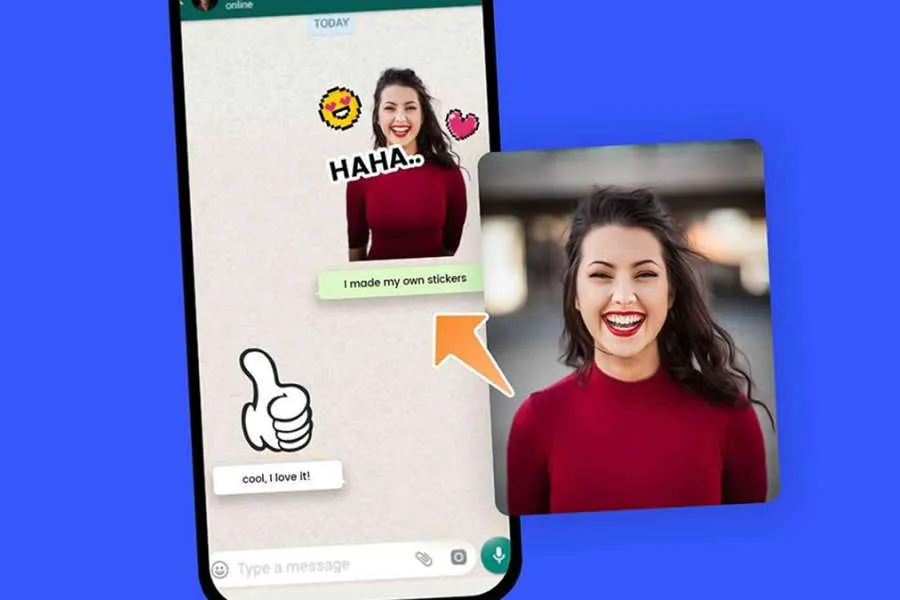
Want to turn your favourite photos into hilarious WhatsApp stickers? The secret to a great sticker isn't just a funny face or a cute pet, it's a clean, transparent background. A sticker that blends perfectly into any chat, whether it's on light mode or dark mode, looks professional and stands out. But getting that perfect cutout used to mean struggling with complex software. Not anymore.
The good news is that you don't need any design skills to make your own custom stickers. The key is using the right tools to prepare your image. Before you even think about removing the background, you'll want to make sure your picture is sharp and clear. A blurry or low-quality photo will result in a fuzzy sticker. Using a Photo Enhancer can fix low resolution, correct colours, and sharpen details, giving you a perfect starting point for a high-quality sticker.
Once your photo looks its best, the next step is isolating your subject. This is where a powerful, one-click tool changes everything. Instead of manually tracing edges, you can use an AI-powered Background Remover to do the hard work for you in seconds. It intelligently detects the main subject, from people to pets to products, and instantly removes the background, leaving you with a clean image ready for your sticker collection.
WHY A TRANSPARENT BACKGROUND IS ESSENTIAL FOR STICKERS
When you save a standard photo, it's usually a JPG file. This format has a solid background, even if it's plain white. If you try to use a JPG as a sticker, you'll get an ugly white box around your subject.
Transparent backgrounds solve this problem. They are saved in a PNG format, which allows parts of the image to be completely see-through.
Here’s why that matters for your WhatsApp stickers:
* Seamless Integration: A transparent sticker looks like it's part of the conversation. It sits cleanly on any chat wallpaper, whether it’s a solid colour, a photo, or the default pattern.
* Professional Look: Stickers with clean, transparent edges look polished and well-made. There are no distracting white or coloured boxes around your subject.
* Focus on the Subject: Removing the background clutter makes the main subject, like a person's funny expression or a pet's goofy pose, the centre of attention.
THE BEST TOOLS FOR MAKING STICKER-READY IMAGES
Making the perfect sticker is a two-step process: enhancing the photo for quality and then removing the background for a clean cutout. Here are the top tools designed to handle each task perfectly.
#1: The AI-Powered Background Remover for Instant Results
For creating stickers, speed and accuracy are everything. The AI Background Remover is built for exactly this purpose. You don't need to sign up or learn how to use complicated tools. The process is simple: you upload your photo, and the AI handles the rest.
What makes it so effective is its precision. The technology is trained to recognise complex edges, like hair and fur, which are famously difficult to cut out manually.
Key Benefits:
* One-Click Simplicity: The entire process is automated. Upload your image, and the tool delivers a transparent PNG in seconds.
* High Accuracy: It intelligently identifies the foreground subject and cleanly removes the background without cropping important details.
* Saves Time: What used to take several minutes of careful work in traditional software now takes less than five seconds.
* No Skills Needed: It’s completely user-friendly, making it accessible for anyone who wants to create stickers without a learning curve.
#2: The Photo Enhancer for Crystal-Clear Sticker Quality
A great sticker starts with a great photo. If your source image is blurry, pixelated, or has poor lighting, the final sticker will look low-quality. This is where the Photo Enhancer comes in. It's the ideal first step before you remove the background.
By running your photo through the enhancer, you can upscale the resolution, improve sharpness, and balance the colours. This ensures that when you create your sticker, the lines are crisp and the details are clear, even on high-resolution phone screens.
Key Benefits:
* Improves Resolution: It can increase the pixel count of your photo, turning a slightly blurry image into a sharp and clear one.
* Fixes Imperfections: The tool automatically reduces noise and corrects compression artefacts from saving and sharing photos.
* Better Colour and Lighting: It can automatically adjust brightness and colour saturation to make your subject pop.
* Creates a Better Final Product: A high-quality source image allows the background remover to work more accurately and results in a much more impressive sticker.
STEP-BY-STEP GUIDE: FROM PHOTO TO WHATSAPP STICKER
Ready to create your own sticker pack? Follow these simple steps to go from a regular photo to a finished WhatsApp sticker in just a few minutes.
Step 1: Choose and Prepare Your Photo
First, pick the right photo. Look for an image where the subject is clear and well-lit. Pictures of faces with strong expressions, pets in funny positions, or single objects work best.
Before you do anything else, consider running it through the Photo Enhancer. Upload it to the tool to fix any blurriness or low-resolution issues. This single step can make a huge difference in the final quality of your sticker. Once it’s enhanced, save the improved image to your device.
Step 2: Remove the Background Instantly
Now it's time to create the transparent background.
1. Open the AI Background Remover tool.
2. Upload the enhanced photo you just saved.
3. The AI will automatically process the image and remove the background.
4. You'll see a preview of your image with a transparent background (often shown as a checkerboard pattern).
5. Click the download button. The tool will save the image as a PNG file, which is exactly what you need for a sticker.
Step 3: Add Your Sticker to WhatsApp
With your transparent PNG file saved, the final step is to import it into WhatsApp. Since you can't add single stickers directly, you'll need a free sticker maker app to bundle them into a "pack."
For iPhone and Android Users:
1. Go to your phone's app store (Apple App Store or Google Play Store).
2. Search for "Sticker Maker" and download a well-reviewed free app like "Sticker Maker Studio" or "Sticker.ly."
3. Open the app and tap the option to create a new sticker pack. Give your pack a name.
4. Select the first empty slot in the pack and choose the transparent PNG image you created.
5. The app may ask you to outline the sticker, but since your background is already transparent, you can usually just save it as is.
6. You typically need to add at least three stickers to a pack before you can import it. Repeat the process with a couple more images.
7. Once your pack is ready, tap the "Add to WhatsApp" button. The app will automatically export your new sticker pack to WhatsApp.
Now, open any WhatsApp chat, tap the sticker icon on your keyboard, and you'll see your new custom sticker pack ready to use!
Tips for Creating Stickers People Will Actually Use
* Add a White Outline: Many popular stickers have a thin white border. After removing the background, you can use a simple photo editing app to add a white "stroke" or outline around your subject. This helps the sticker stand out on any chat background.
* Use Expressive Text: Add short, bold text that matches the sticker's emotion, like "Wow," "LOL," or "Really?". Keep the text readable and simple.
* Focus on Reactions: The most-used stickers are reaction faces. Create stickers from photos of you or your friends laughing, looking surprised, or rolling your eyes.
* Keep It Simple: The best stickers feature a single, clear subject. Avoid cluttered images with too much going on.
* Create for Your Friend Group: The most fun stickers are often based on inside jokes. Turn a funny moment from a group trip or a friend's signature catchphrase into a sticker.
Frequently Asked Questions (FAQ)
What file format do WhatsApp stickers need?
WhatsApp stickers must be in the PNG format with a transparent background. The tools mentioned above automatically save your files in the correct format.
Do I need Photoshop to make a transparent background?
No. While Photoshop can do the job, it's complex and requires a paid subscription. AI-powered online tools can create a transparent background for free in just one click, with no software to install.
How can I make my sticker not look blurry?
The best way to prevent a blurry sticker is to start with a high-quality photo. Use a Photo Enhancer before removing the background to increase its resolution and sharpness.
Can I make stickers of my pets?
Absolutely! Pets make fantastic stickers. The AI Background Remover is especially good at handling tricky details like fur, so you can get a clean cutout of your dog or cat.
Share: